> ## Documentation Index
> Fetch the complete documentation index at: https://docs.epicmarket.in/llms.txt
> Use this file to discover all available pages before exploring further.
# 📦 Manage Orders Guide 🛒
> Track and manage customer orders efficiently with our intuitive order management interface.
The Manage Orders interface provides real-time visibility into order status, customer details, and transaction information.
## Overview
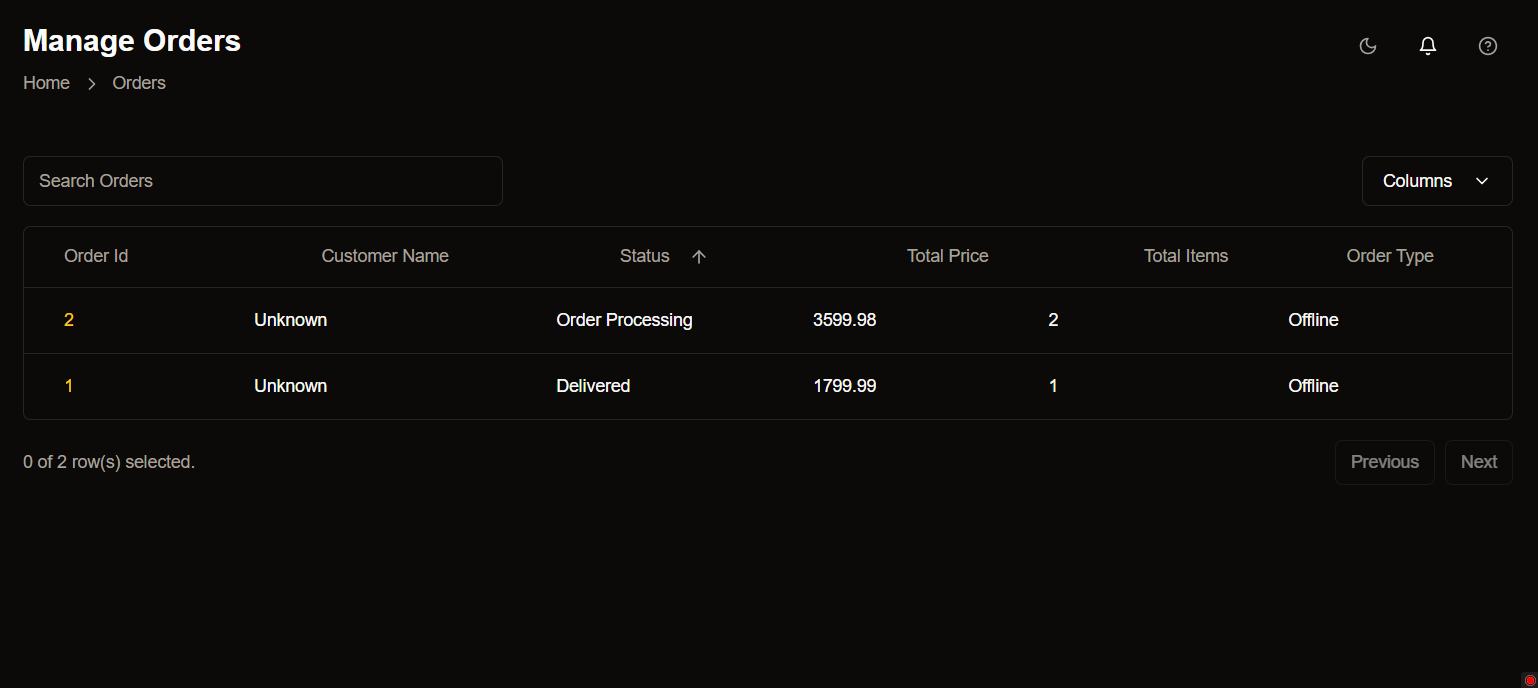
The Manage Orders page offers a comprehensive view of all customer orders in a responsive table format. Monitor order statuses, and manage customer transactions all in one place.
 ## Key Features
View detailed order information including IDs, customer names, and statuses in a clean, organized table layout.
Quickly locate specific orders using the intelligent search functionality.
Organize orders by any column and customize visible fields through the Columns menu.
Enhanced visibility with dark theme support for comfortable viewing in any lighting condition.
## Table Structure
Unique identifier for each order.
Name of the customer who placed the order.
Current state of the order:
* Order Processing
* Delivered
* Cancelled
Total order value in INR (₹)
Number of items in the order.
* Offline
* Online
## Interactive Features
Use the search bar to filter orders by any field.
* Enter Order ID, Customer Name, or Status.
Click the "Columns" button to:
* Show/hide specific columns
* Rearrange column order
* Reset to default view
Navigate through order pages using:
* Previous/Next buttons
* Page number selection
* Items per page dropdown
## Status Indicators
Status indicators use color coding for quick visual identification of order states.
## Best Practices
1. Regularly monitor the "Order Processing" status for timely fulfillment.
2. Use search functionality for quick access to specific orders.
3. Verify customer details before updating order status.
4. Check total price and items count for order accuracy.
## Key Features
View detailed order information including IDs, customer names, and statuses in a clean, organized table layout.
Quickly locate specific orders using the intelligent search functionality.
Organize orders by any column and customize visible fields through the Columns menu.
Enhanced visibility with dark theme support for comfortable viewing in any lighting condition.
## Table Structure
Unique identifier for each order.
Name of the customer who placed the order.
Current state of the order:
* Order Processing
* Delivered
* Cancelled
Total order value in INR (₹)
Number of items in the order.
* Offline
* Online
## Interactive Features
Use the search bar to filter orders by any field.
* Enter Order ID, Customer Name, or Status.
Click the "Columns" button to:
* Show/hide specific columns
* Rearrange column order
* Reset to default view
Navigate through order pages using:
* Previous/Next buttons
* Page number selection
* Items per page dropdown
## Status Indicators
Status indicators use color coding for quick visual identification of order states.
## Best Practices
1. Regularly monitor the "Order Processing" status for timely fulfillment.
2. Use search functionality for quick access to specific orders.
3. Verify customer details before updating order status.
4. Check total price and items count for order accuracy.