> ## Documentation Index
> Fetch the complete documentation index at: https://docs.epicmarket.in/llms.txt
> Use this file to discover all available pages before exploring further.

# 💳 Modern Point of Sale (POS) System🖥️

> A comprehensive guide to our modern POS solution for seamless retail transactions

# Point of Sale (POS) System

> **Info:** Our POS system combines powerful inventory management with an intuitive checkout experience, helping retail businesses process transactions efficiently while collecting valuable customer data.

<Frame>
  <img src="https://mintcdn.com/epicmarket/UxupAJ_wiXZ0w79o/images/images%20docs/image8.1.png?fit=max&auto=format&n=UxupAJ_wiXZ0w79o&q=85&s=0d72e9e365bf570e802386588c677fff" alt="image8.1.png" width="300" height="200" data-path="images/images docs/image8.1.png" />
</Frame>

## Product Catalog Interface

### Visual Overview

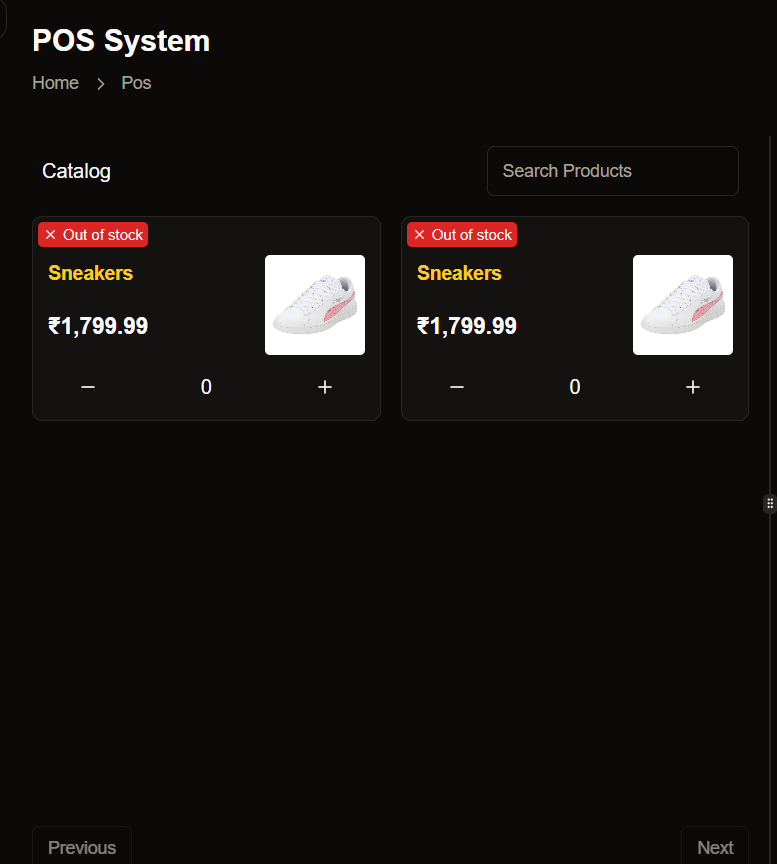
Browse through your entire product inventory with our visually optimized catalog view. Each product is displayed with clear imagery and essential information for quick identification.
<Frame>
  <img src="https://mintcdn.com/epicmarket/UxupAJ_wiXZ0w79o/images/images%20docs/image8.2.png?fit=max&auto=format&n=UxupAJ_wiXZ0w79o&q=85&s=5c9d2e295bc7a6acad5516128dfa27a4" alt="image8.2.png" width="300" height="200" data-path="images/images docs/image8.2.png" />
</Frame>

### Key Features

<CardGroup cols={2}>
  <Card title=" Visual Product Cards" icon="image">
    Each product card displays a high-quality product image, name, and price for easy browsing and selection.
  </Card>

  <Card title=" Smart Search" icon="magnifying-glass">
    Quickly find products with our intelligent search functionality that supports partial matches and category filters.
  </Card>

  <Card title=" Pagination Controls" icon="arrows-left-right">
    Navigate through your catalog with intuitive Previous and Next buttons for a seamless browsing experience.
  </Card>

  <Card title=" One-Click Add" icon="plus">
    Add products to the current order with a single click, streamlining the checkout process.
  </Card>
</CardGroup>

## Checkout Workflow

Follow our streamlined checkout process to complete transactions quickly and accurately.

<Steps>
  <Step title="Build the Order">
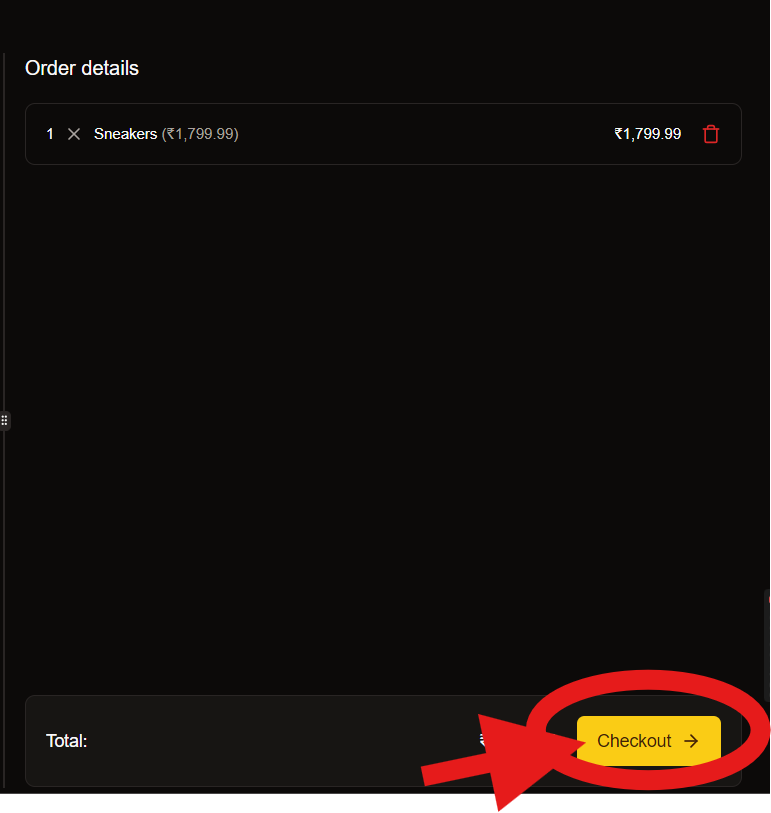
    Select products from the catalog to add to the current order. The system automatically calculates totals and applies any relevant discounts.

    <Tip>You can also scan barcodes to add products quickly</Tip>
  </Step>

  <Step title="Review Order Summary">
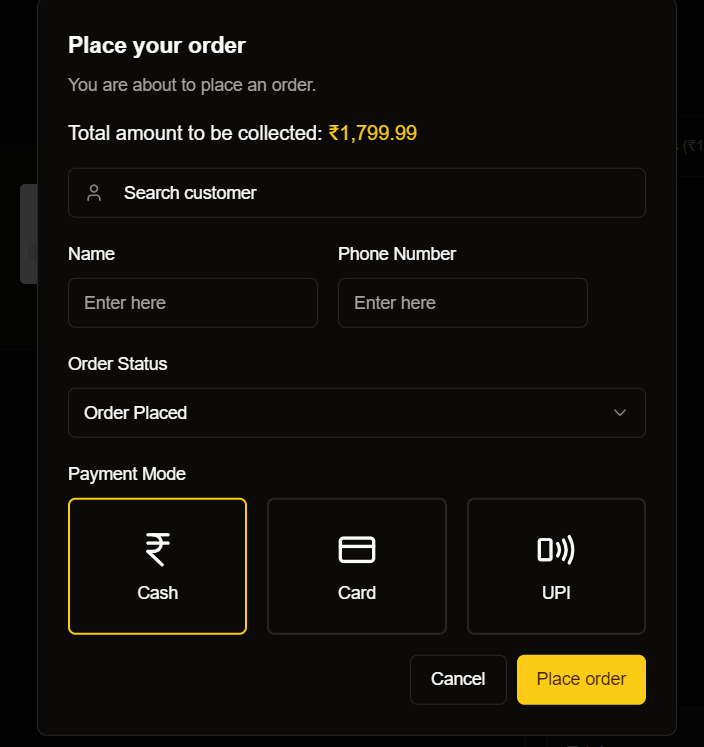
    Verify the order details, including:

    * Total amount (e.g., ₹1,799.99)
    * Individual items and quantities
    * Applied discounts or promotions
  </Step>

  <Step title="Collect Customer Information">
    <Frame>
      <img src="https://mintcdn.com/epicmarket/UxupAJ_wiXZ0w79o/images/images%20docs/image8.3.png?fit=max&auto=format&n=UxupAJ_wiXZ0w79o&q=85&s=d99b9f8916878b7f25ece2ff8d5b16c0" alt="image8.3.png" width="300" height="200" data-path="images/images docs/image8.3.png" />
    </Frame>

    <Warning>Customer information helps build your loyalty database and improves future marketing opportunities.</Warning>
  </Step>

  <Step title="Select Payment Method">
    * Process traditional cash payments with automatic change calculation.
    * Accept credit and debit cards through integrated payment terminals.
    * Generate dynamic QR codes for seamless UPI transactions.
  </Step>

  <Step title="Complete Transaction">
    <AccordionGroup>
      <Accordion title="Finalize Order">
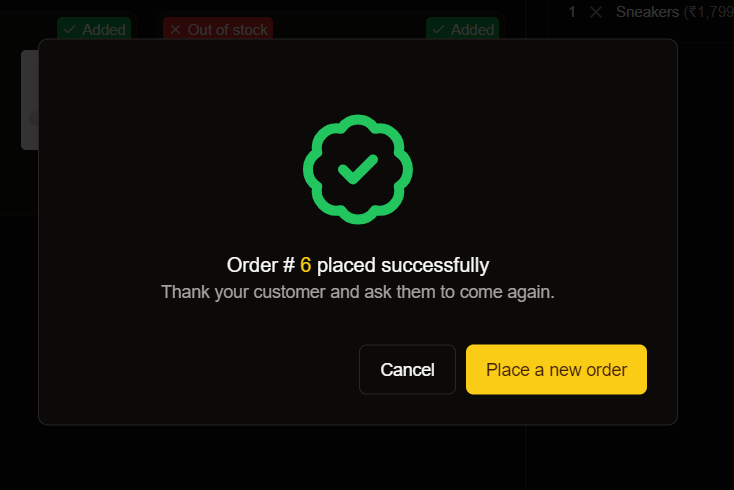
        Click the "Place Order" button to complete the transaction. The system will display a success confirmation and generate a receipt.
      </Accordion>

      <Accordion title="Cancel Order">
        If needed, you can cancel the current order by clicking the "Cancel" button.
      </Accordion>
    </AccordionGroup>
  </Step>
</Steps>

## Payment Options

Choose from multiple payment methods to accommodate all customer preferences.

<CardGroup cols={3}>
  <Card title=" Cash Payments" icon="money-bill">
    Process traditional cash transactions with automatic change calculation and drawer management.
  </Card>

  <Card title=" Card Payments" icon="credit-card">
    Accept credit and debit cards through integrated payment terminals with instant verification.
  </Card>

  <Card title=" UPI Payments" icon="mobile">
    Generate dynamic QR codes for seamless UPI transactions popular in the Indian market.
  </Card>
</CardGroup>

## Order Statuses

<Table>
  <thead>
    <tr>
      <th>Status</th>
      <th>Description</th>
      <th>Next Actions</th>
    </tr>
  </thead>

  <tbody>
    <tr>
      <td><Badge variant="info">Order Placed</Badge></td>
      <td>Initial status after successful payment</td>
      <td>Prepare order, Print receipt</td>
    </tr>

    <tr>
      <td><Badge variant="warning">Processing</Badge></td>
      <td>Order is being prepared</td>
      <td>Package items, Verify contents</td>
    </tr>

    <tr>
      <td><Badge variant="success">Completed</Badge></td>
      <td>Order fulfilled and delivered to customer</td>
      <td>Request feedback, Offer loyalty rewards</td>
    </tr>
  </tbody>
</Table>

<div className="overflow-x-auto">
  <table className="min-w-full bg-white dark:bg-gray-800 rounded-lg overflow-hidden shadow-md">
    <thead className="bg-gray-100 dark:bg-gray-700">
      <tr>
        <th className="py-3 px-4 text-left">Status</th>
        <th className="py-3 px-4 text-left">Description</th>
        <th className="py-3 px-4 text-left">Next Actions</th>
      </tr>
    </thead>

    <tbody>
      <tr className="border-b border-gray-200 dark:border-gray-700">
        <td className="py-3 px-4"><span className="px-2 py-1 bg-blue-100 text-blue-800 rounded-full text-xs">Order Placed</span></td>
        <td className="py-3 px-4">Initial status after successful payment</td>
        <td className="py-3 px-4">Prepare order, Print receipt</td>
      </tr>

      <tr className="border-b border-gray-200 dark:border-gray-700">
        <td className="py-3 px-4"><span className="px-2 py-1 bg-yellow-100 text-yellow-800 rounded-full text-xs">Processing</span></td>
        <td className="py-3 px-4">Order is being prepared</td>
        <td className="py-3 px-4">Package items, Verify contents</td>
      </tr>

      <tr>
        <td className="py-3 px-4"><span className="px-2 py-1 bg-green-100 text-green-800 rounded-full text-xs">Completed</span></td>
        <td className="py-3 px-4">Order fulfilled and delivered to customer</td>
        <td className="py-3 px-4">Request feedback, Offer loyalty rewards</td>
      </tr>
    </tbody>
  </table>
</div>

<Frame>
  <img src="https://mintcdn.com/epicmarket/UxupAJ_wiXZ0w79o/images/images%20docs/image8.4.png?fit=max&auto=format&n=UxupAJ_wiXZ0w79o&q=85&s=e1f34f0c4c0f8806c5d33150f6de9c93" alt="image8.4.png" width="300" height="200" data-path="images/images docs/image8.4.png" />
</Frame>