> ## Documentation Index
> Fetch the complete documentation index at: https://docs.epicmarket.in/llms.txt
> Use this file to discover all available pages before exploring further.
# 🤝Getting Started for Business Owners📋
> Learn how to create and set up your business account on EpicMarket
# How to Get Started for Business Owners
The path to digital success has never been easier. With EpicMarket, you can begin your transformation journey in just a few steps.
## Create Your Business Account 🚀
1. **Visit the Business Creation Portal**\
Navigate to [https://epicmarket.in/business](https://epicmarket.in/business)
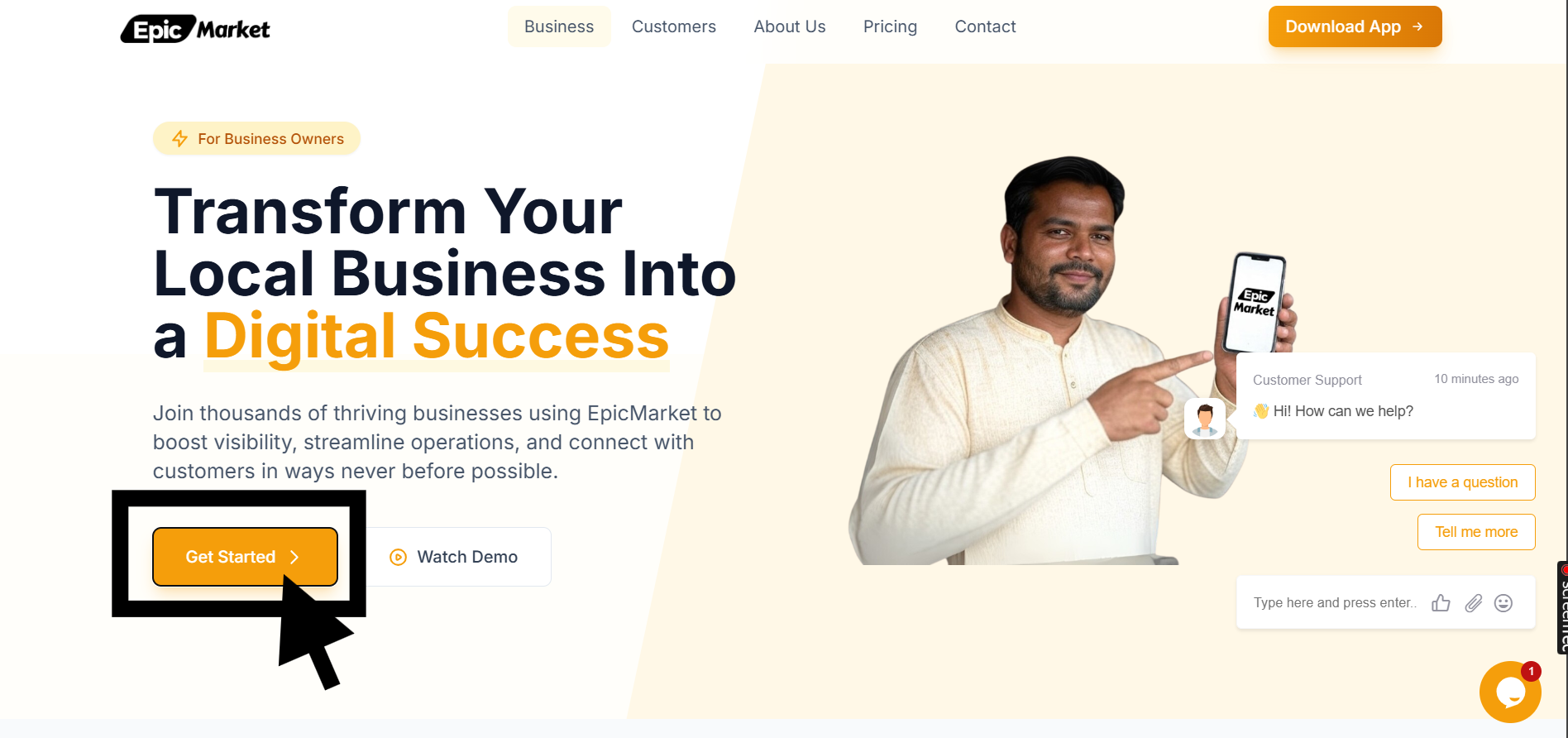 2. **Click the "Get Started" button**\
Look for the prominent blue button at the top of the page to begin the process.
Make sure you have your business details ready before starting the
registration process.
## Registration Guide
Follow our step-by-step process to complete your registration.
### Step-by-Step Registration Process
**Registration Portal:** [https://owner.epicmarket.in/auth/login](https://owner.epicmarket.in/auth/login)
2. **Click the "Get Started" button**\
Look for the prominent blue button at the top of the page to begin the process.
Make sure you have your business details ready before starting the
registration process.
## Registration Guide
Follow our step-by-step process to complete your registration.
### Step-by-Step Registration Process
**Registration Portal:** [https://owner.epicmarket.in/auth/login](https://owner.epicmarket.in/auth/login)
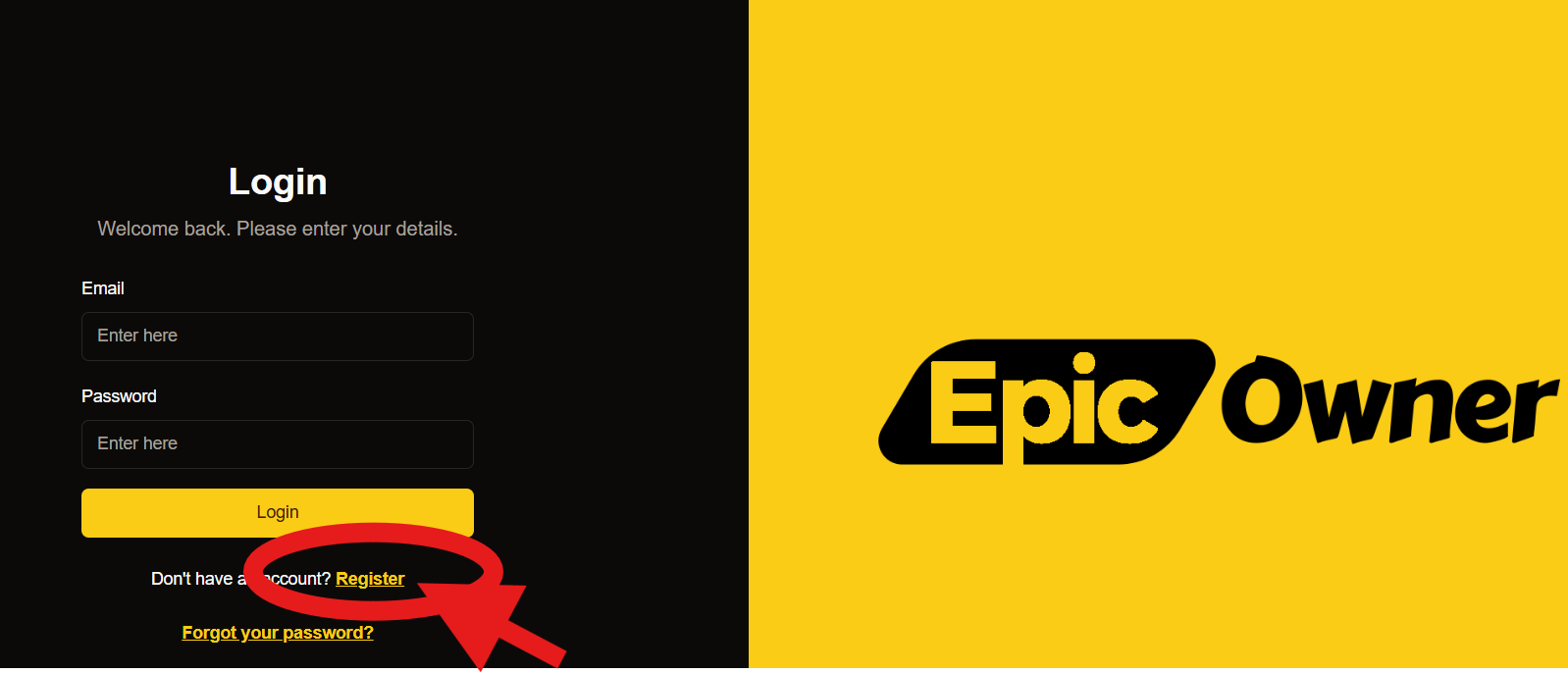 1. **Access Registration Form** 💼
* Click the "Register" link below the login form
* You'll see these form fields:
{" "}
1. **Access Registration Form** 💼
* Click the "Register" link below the login form
* You'll see these form fields:
{" "}
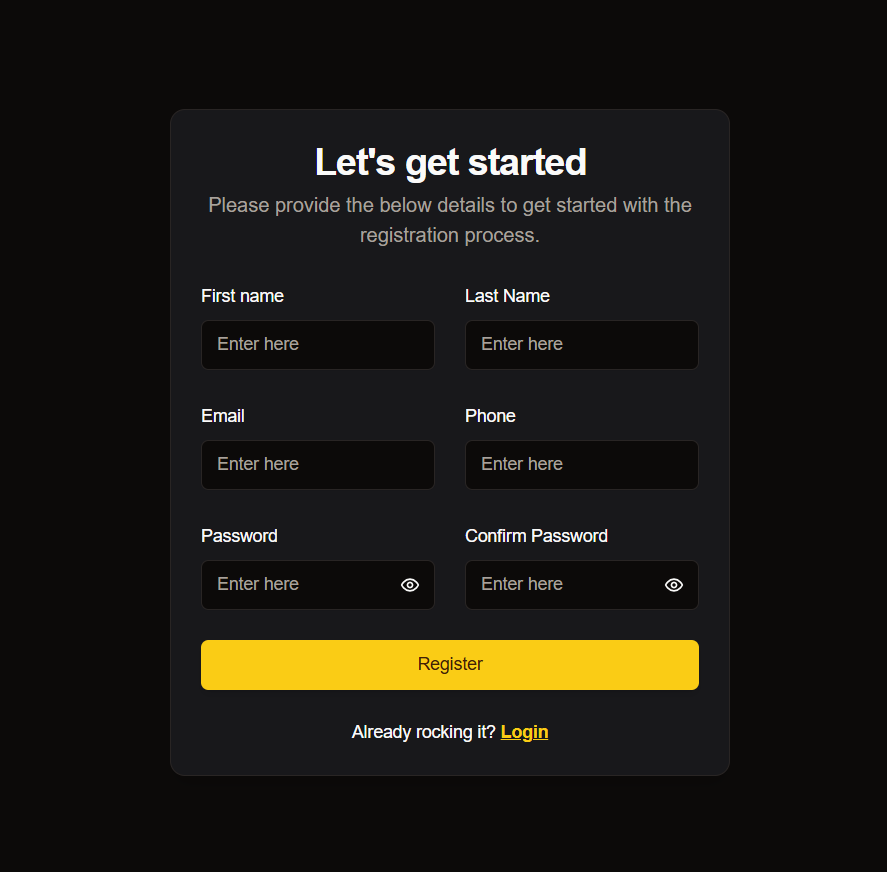 2. **Fill in Your Details** ✏️
* Start by entering your first and last name in their respective fields
* Provide your email address and phone number
* Ensure there are no types, as these details will be used for verification
Double-check your email address - this will be used for account
verification and recovery.
3. **Set Up Security** 🔒
* Choose a secure password
* Type it into the "Password" field
* Retype it in the "Confirm Password" field
4. **Submit Your Application** ✅
* Review all entered information
* Click the yellow "Register" button to submit your details
Keep your login credentials in a secure place - you'll need them to access
your business dashboard.
## What's Next? 🎯
After completing your registration
Add your business details, logo and operating hours
{" "}
Connect your payment processing methods
Start adding your products or services
## Need Support?
Our support team is available 24/7 to assist you.
* 📧 Email: [support@epicmarket.in](mailto:support@epicmarket.in)
* 💬 Live Chat: Available in dashboard
* 📞 Phone: +91 9014753848
For technical issues during registration, please contact our support team with
the error message and a screenshot if possible.
{" "}
2. **Fill in Your Details** ✏️
* Start by entering your first and last name in their respective fields
* Provide your email address and phone number
* Ensure there are no types, as these details will be used for verification
Double-check your email address - this will be used for account
verification and recovery.
3. **Set Up Security** 🔒
* Choose a secure password
* Type it into the "Password" field
* Retype it in the "Confirm Password" field
4. **Submit Your Application** ✅
* Review all entered information
* Click the yellow "Register" button to submit your details
Keep your login credentials in a secure place - you'll need them to access
your business dashboard.
## What's Next? 🎯
After completing your registration
Add your business details, logo and operating hours
{" "}
Connect your payment processing methods
Start adding your products or services
## Need Support?
Our support team is available 24/7 to assist you.
* 📧 Email: [support@epicmarket.in](mailto:support@epicmarket.in)
* 💬 Live Chat: Available in dashboard
* 📞 Phone: +91 9014753848
For technical issues during registration, please contact our support team with
the error message and a screenshot if possible.
{" "}