

Accessing the Epic Owner Dashboard
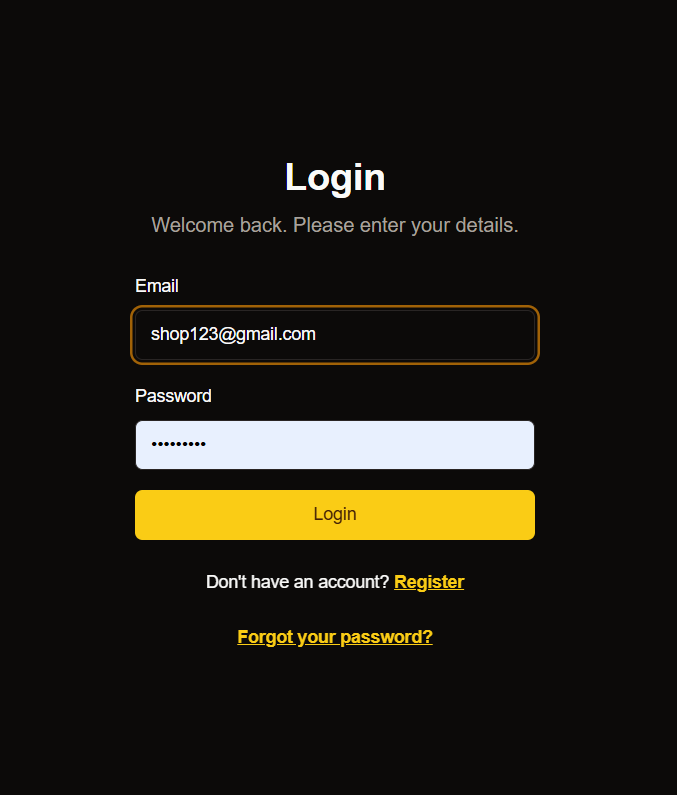
Get started with managing your branches and business operations through our intuitive dashboard.Make sure you have your registered email and password ready before proceeding.
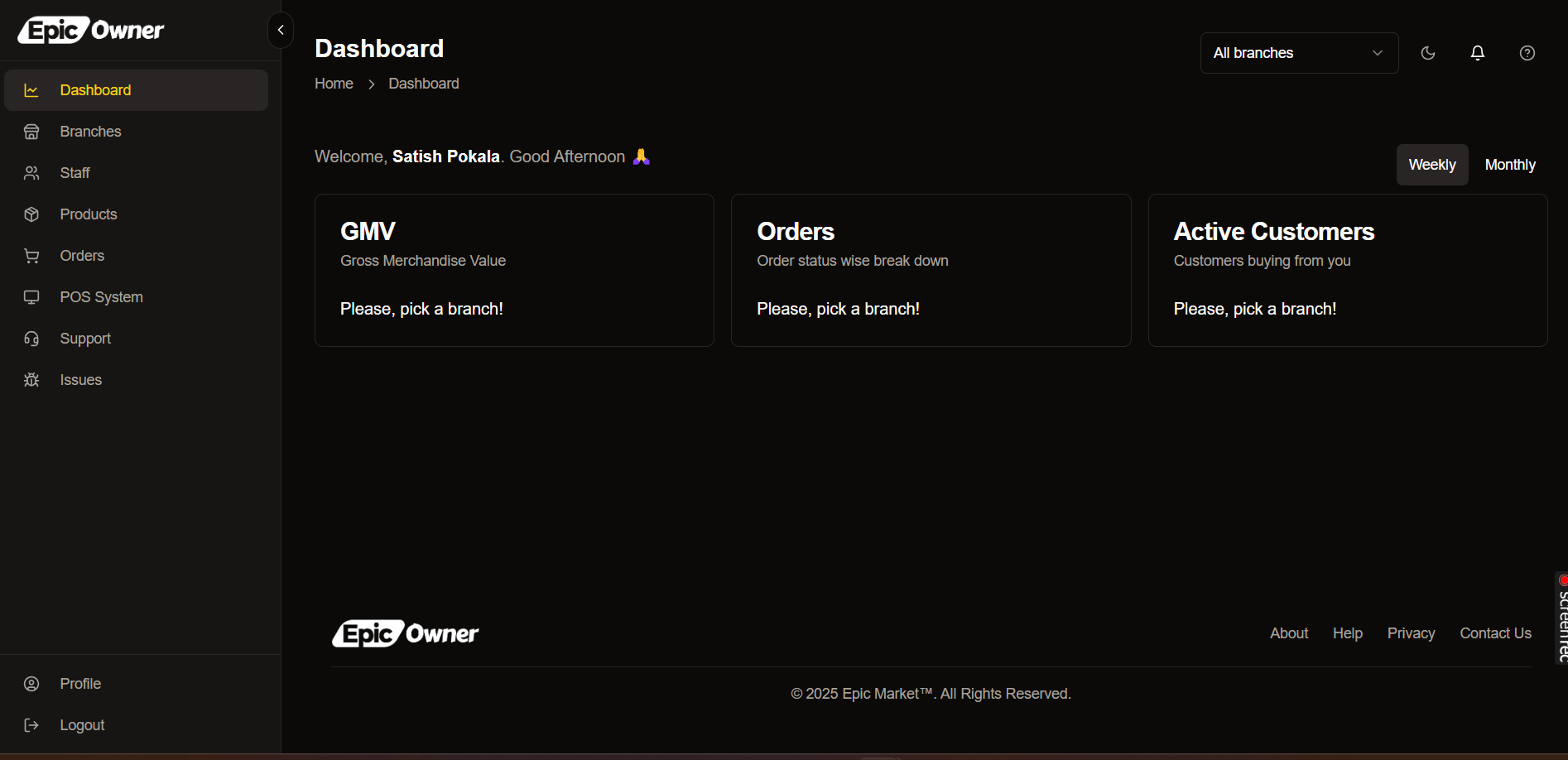
Quick Access
Login with your credentials to instantly access all dashboard features
Branch Management
Add and manage multiple branches from a centralized location
Authentication
Adding a New Branch
Follow these steps to expand your business network by adding new branches.1
Navigate to Branches
Locate and click on the Branches section in the dashboard navigation.
2
Create New Branch
Click the Add Branch button to access the branch creation form.
Branch Information Form
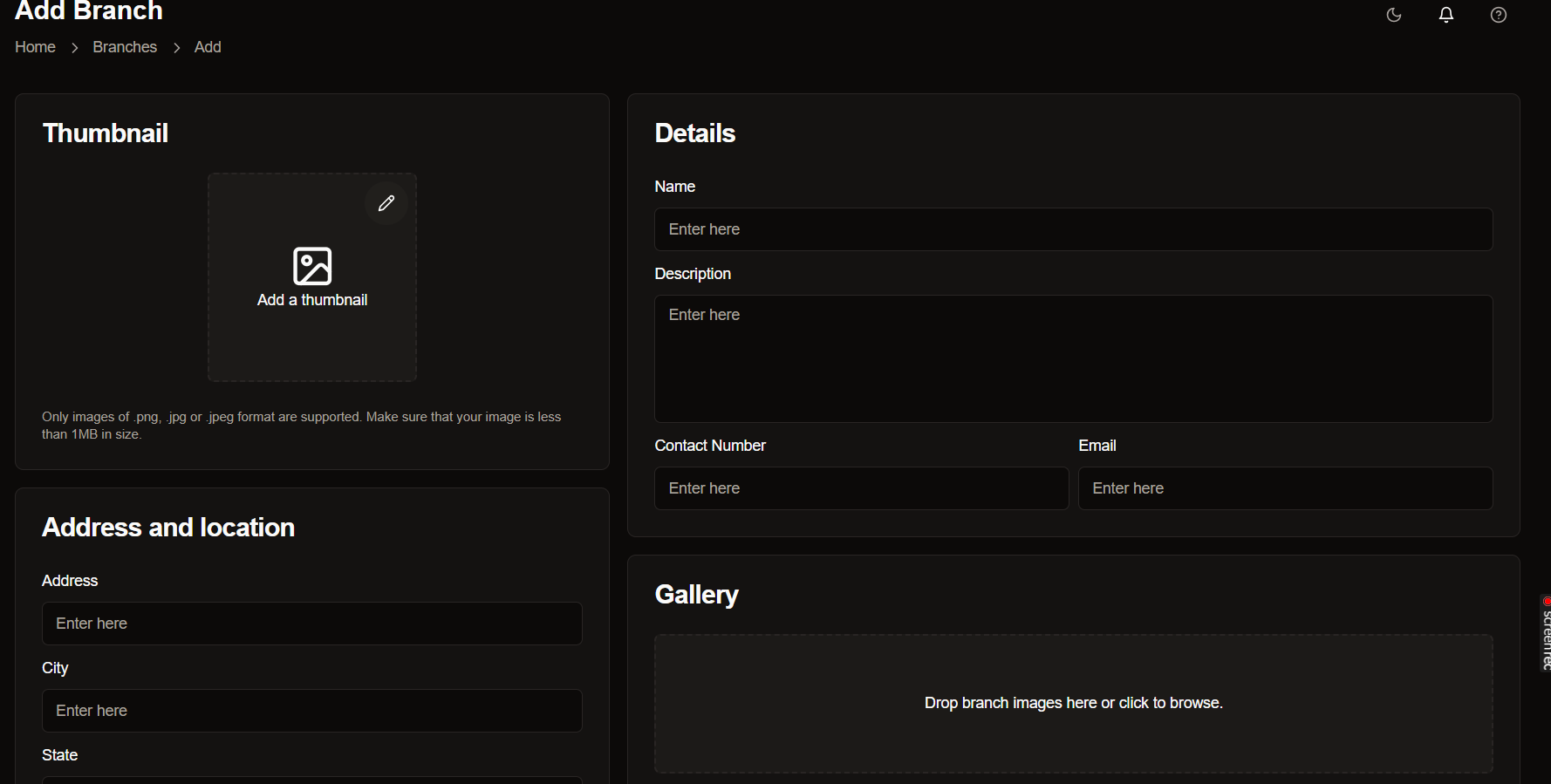
Required Fields
Upload a representative image for your branch location
Enter a distinct name for your branch (e.g., “Downtown Office”)
Provide a brief overview of the branch’s purpose or services
Optional Fields
Additional Images
Additional Images
Enhance your branch profile with supplementary visuals:
- Interior photographs
- Exterior views
- Team photos
- Drag and drop files into the gallery box
- Click to browse and select from your device
Form Submission
1
Review Information
Double-check all entered details for accuracy
2
Validate Required Fields
Ensure all required fields are properly filled
3
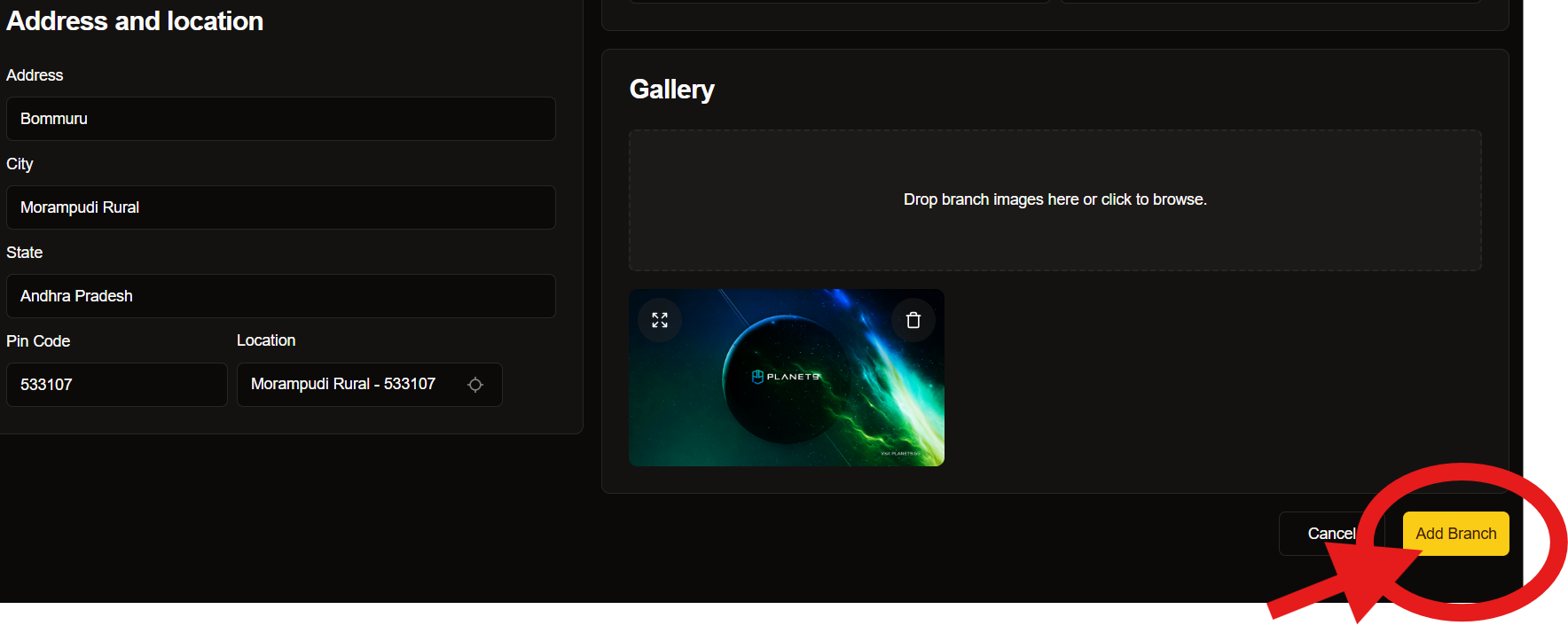
Submit
Click the Add Branch button to save your new branch
Next Steps
After successfully adding your branch, you can:Branch Settings
Configure branch-specific settings and preferences
Staff Management
Add and manage staff members for your new branch
Operating Hours
Set up business hours and availability
Promotions
Create branch-specific offers and promotions
Need assistance? Our support team is available 24/7 at support@epicmarket.com