

Overview
The Manage Orders page offers a comprehensive view of all customer orders in a responsive table format. Monitor order statuses, and manage customer transactions all in one place.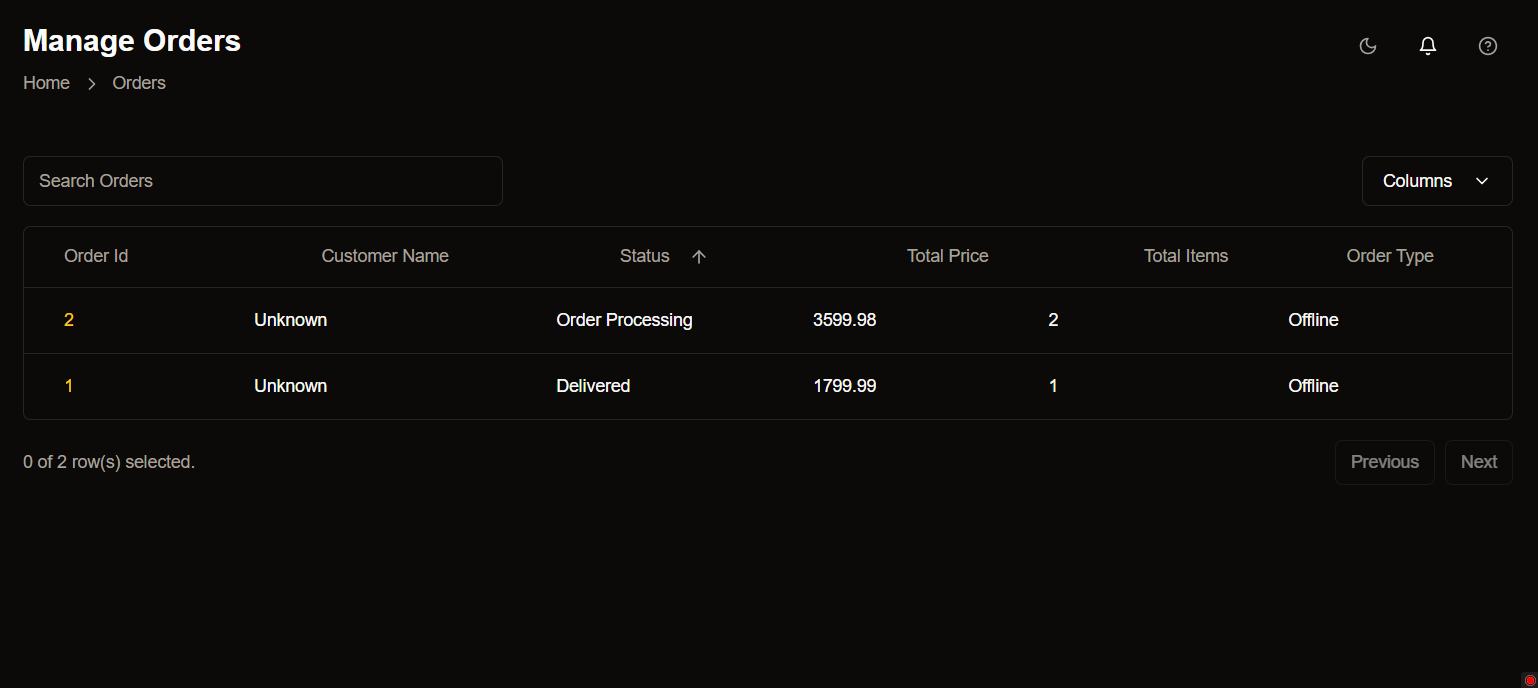
Key Features
Order Tracking
View detailed order information including IDs, customer names, and statuses in a clean, organized table layout.
Smart Search
Quickly locate specific orders using the intelligent search functionality.
Sorting & Filtering
Organize orders by any column and customize visible fields through the Columns menu.
Dark Mode
Enhanced visibility with dark theme support for comfortable viewing in any lighting condition.
Table Structure
Unique identifier for each order.
Name of the customer who placed the order.
Current state of the order:
- Order Processing
- Delivered
- Cancelled
Total order value in INR (₹)
Number of items in the order.
- Offline
- Online
Interactive Features
Search Orders
Search Orders
Use the search bar to filter orders by any field.
- Enter Order ID, Customer Name, or Status.
Column Customization
Column Customization
Click the “Columns” button to:
- Show/hide specific columns
- Rearrange column order
- Reset to default view
Pagination
Pagination
Navigate through order pages using:
- Previous/Next buttons
- Page number selection
- Items per page dropdown
Status Indicators
Status indicators use color coding for quick visual identification of order states.